Why Chrome is the Best Browser for LinkedIn Outreach (and How to Use Profiles)
If you're doing serious outreach on LinkedIn, your browser choice matters more than you might think. We highly recommend Google Chrome for the optimal Linxa workflow. Here's why.
1. Why Chrome is the Best Choice for LinkedIn Outreach
- Native Linxa Extension Support: The Linxa Extension is built and optimized specifically for Chrome, ensuring maximum stability and performance.
- Native Integration with Claude (Anthropic): Access seamless AI-powered capabilities for your outreach workflow natively.
- Built-in Gemini: Chrome brings a new level of AI assistance directly into the browser, augmenting your productivity.
- Massive Extension Ecosystem: Chrome offers the largest library of extensions for modern outreach workflows.
- Manifest V3 Architecture: Chrome's modern architecture ensures stability, privacy, and better performance for background tasks.
2. Chrome Profiles for Multi-Account Workflow
Many users manage multiple LinkedIn accounts. Instead of constantly logging in and out—which adds friction and significantly increases the risk of LinkedIn bans—you can use Chrome Profiles.
Creating a separate Chrome Profile for each LinkedIn account ensures complete isolation of cookies, session data, and browser fingerprints. It's safe, efficient, and requires zero switching overhead.
Step-by-Step Guide: Setting Up Chrome Profiles
- Open Chrome and click on your profile picture icon in the top right corner.
- Click on "Add" at the bottom of the menu, then select "Continue without an account".
- Name the profile after the specific LinkedIn account you'll use it for (e.g., "John Doe - Sales"). Pick a theme color and click "Done".
- In the newly opened Chrome window, install the Linxa Extension from the Chrome Web Store.
- Go to LinkedIn and log in with the corresponding account credentials.
- Repeat steps 1-5 for any additional LinkedIn accounts you manage.
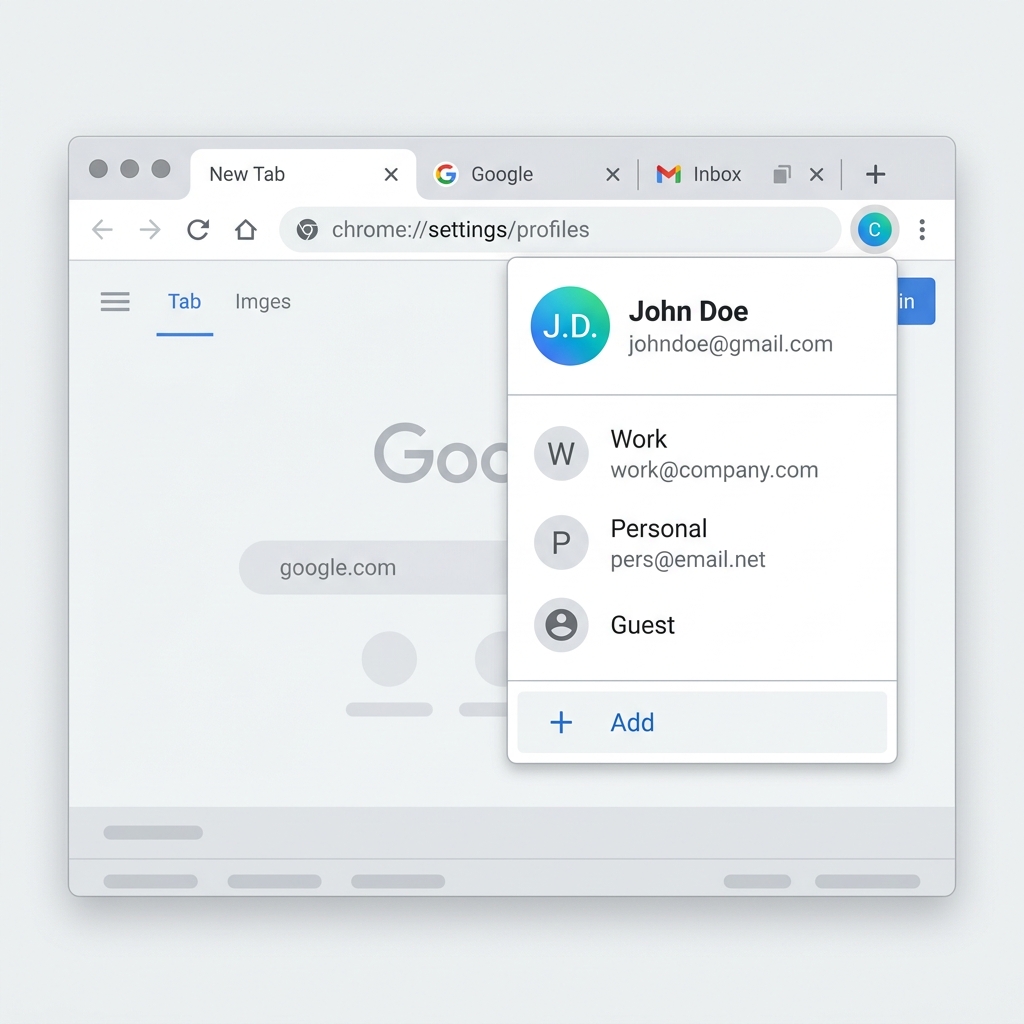
To quickly manage your profiles, you can also paste chrome://settings/manageProfile into your URL bar.
3. What About Other Browsers?
- Firefox: We do not recommend Firefox. The Linxa Extension is not natively supported, and you will miss out on critical features.
- Safari: Limited functionality. While some workarounds exist to run Chrome extensions, the experience is not optimal and can be unstable.
- Edge: Partially supported. As a Chromium-based browser, Edge can run Chrome Web Store plugins, but you may encounter edge-case bugs.
- Atlas: We do not recommend using Atlas for Linxa.
For Safari or Edge users: While it's technically possible to use Linxa, we strongly advise switching to Chrome for a frictionless and robust experience.